Showing posts with label SSRS. Show all posts

Friday, August 12, 2011

SSRS - How to add a Document Map to your reports


One of the most common things I do during taking interviews is to give real life scenarios and assess the person on how he tackles the situation. Most of the times, what I really look for is how he goes forward in solving the problem – the approach and the way of thinking rather than the answer itself. Another thing that I look for is whether he tries to put some extra effort to implement the solution (especially the reporting part) in an aesthetic and user-friendly way. Most of the candidates would know the answer to some simple question like how to add data labels to their charts but they stutter when I ask what are smart labels or how can we prevent the cluttering of data labels. I would easily give brownie points to someone who details his solution with some extra attention to details. It must be my frequent rendezvous with creating big reports that make me extra fond of document maps in SSRS and an essential part of my SSRS interview questions.
It is hard to imagine going through a big book that has no table of contents. But many users and developers have no problem at all in designing big reports without any navigational aid (although at some point of their wretched life, the users are going to curse the person who developed those reports), even though Microsoft has provided this feature. Document Map is a navigational feature in SSRS that, when implemented, allows the user to navigate through the document and its hierarchies. With this feature, you can add a panel to the left of the reports where you can have the list of “contents” of the report. What makes it more special is that on clicking the “content” in the list, you will be directly taken to the page where the content is present. Cool feature, huh?
Requirement
Suppose you already have a matrix or a table with some groupings as shown below
Matrix - Subcategory grouping
Suppose the number of subcategories are very large and spans into multiple pages and the requirement is such that each user has to specifically search for a set of subcategories at a particular time of the day. It would make his life a lot easier if there was a document map listing the subcategories on clicking which he would be directly taken to the clicked subcategory
Solution
1) Go to the design mode of the report and click on the group properties of subcategory.
Subcategory group properties
2) Go to the advanced tab of the properties and set the Document map as the field Subcategory (you can select the appropriate field name from the drop-down).
Advanced group properties
3) Save the report, deploy it and then preview it .
Report DM Preview
Already you can see the panel at the left hand side which contains the list of subcategories. To hide/unhide this panel, you can click on the icon that has been highlighted in red in the above image. Notice that the “Document Map” text highlighted in blue is the report name.
4) Now you can click on any of the subcategories, say Handlebars and you would be taken to the page where the clicked subcategory is.
On clicking Handlebars 
5) (a) You can also make document map labels for each of your report item. For eg, if you have 2 tables, you can click on the table and press F4 to see the properties.
Table document map label
5) (b) You can give the required name in the DocumentMapLabel property as shown above and then see the required result when you preview the report.
DM Tables
6) Now that you have seen the toggle symbol, you would have already guessed that it is possible to create hierarchies also in the document map label, for e.g., Subcategory—>Product. For that, all you need to do is to enable Document Map property for the Product group also.
Subcategory - Product Hierarchy DM
Note

“ Document Map is mostly for
HTML rendering. Other renderers render differently.

o PDF: Uses Bookmarks.
o Excel: Uses named worksheet with hierarchical links. Report sections appear in other sheets.
o Word document also has a document map like the table of contents.
o Tiff, CSV, and XML ignore this setting.
o Recursive data is related to the idea of self joins where the relationship between parent and child is represented by fields in the dataset. “
So there ends the part 3 of my interview series. In my next blog, I would be taking a momentary break from my interview question series and presenting a very interesting application of Document Maps, wait for it :)

Thursday, July 14, 2011

Using RS Scripter to backup/restore SSRS's report/subscription/roles...

f you are using SSRS then chances are high to come across a scenario where you want to deploy reports developed on development machine to the production server, there are various ways to do this and one of them is to use RS Scripter tool. Here are the steps to do this -

1. Creating Report Deployment Script

  1. Download the Reporting Services Scripter - http://www.sqldbatips.com/showarticle.asp?ID=62
  2. Update the servers.xml; change the reportservice value if your ReportServer name is different.


  3. Run the RSScripter.exe.
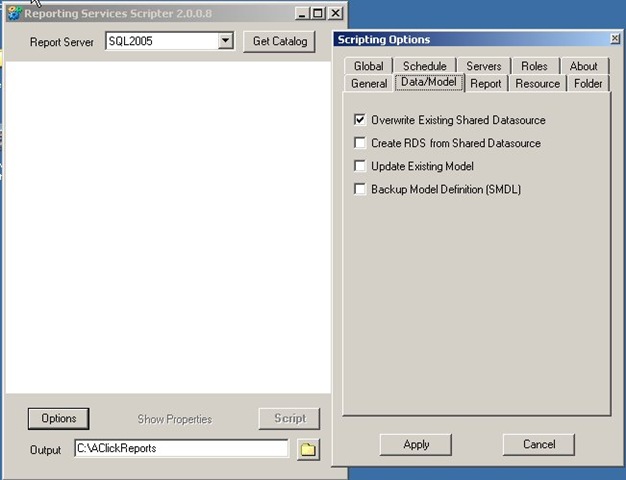
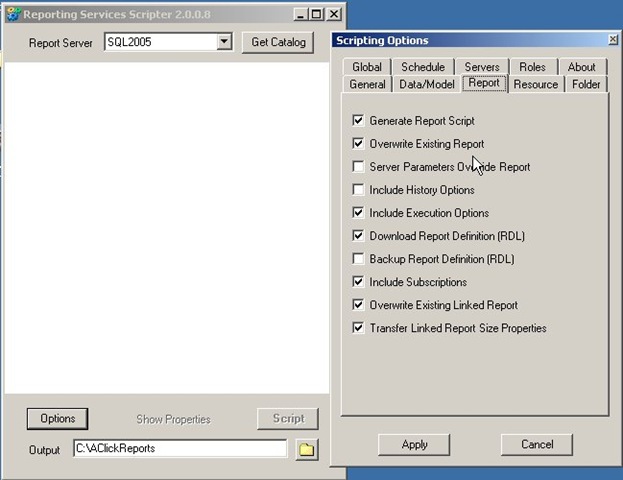
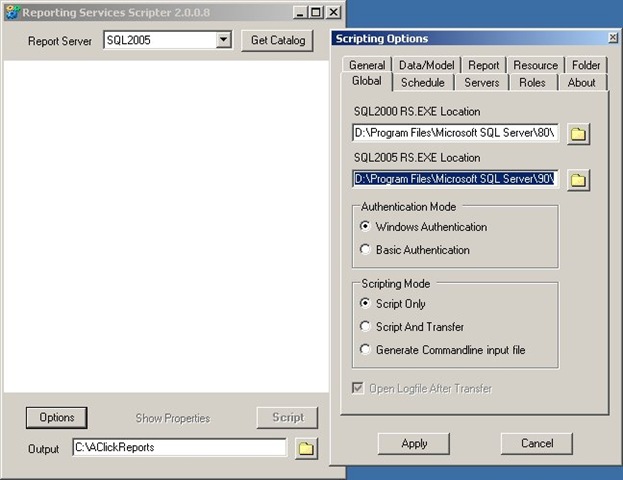
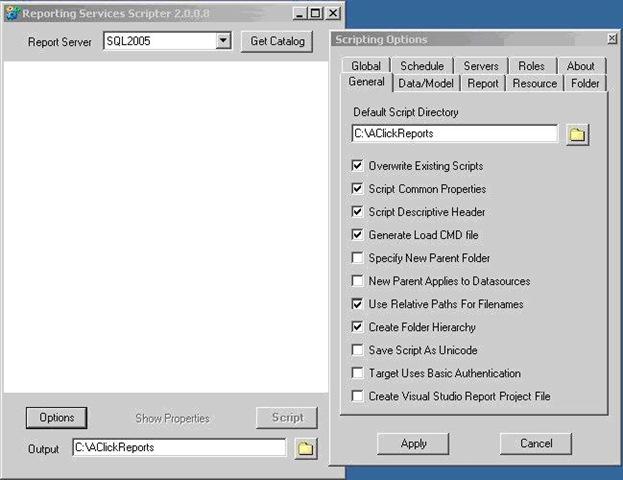
  4. Click on Options, and select the options selected in images below( for more information about Scripting Options check the readme file - http://www.sqldbatips.com/samples/code/RSScripter/readme.htm#_scripting_options) – clip_image001
    clip_image002
    clip_image003
  5. Change the SQL 2005 RS EXE Location in the Global tab as per the location of SQL server and Apply – clip_image004
  6. Select SQL 2005 from the Report Server dropdown and click on Get Catalog, all the reports, data source, Schedules, Roles etc present in report server will be displayed –
    rs1
  7. Select all the reports, data source, schedules and roles you want to transfer.
    rs2
Change the output directory path (Should not be machine/user specific e.g. Desktop) e.g. C:\AClickReports and click on Script. The script for loading the specified items will be generated to the specified folder.

2. Deploying the Reports

  1. Ensure that you have IIS and dot net framework 2.0 is installed on report server.
  2. While installing SQL server 2005 select reporting services option.
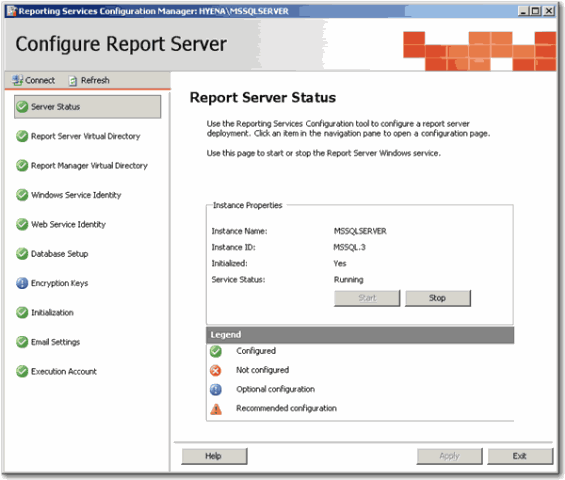
  3. Follow the report server configuration steps and make sure "Report Server Configuration Manager" is all green ticks? clip_image008
  4. Follow these steps to publish reports –
    1. Extract the AClickReports folder to the report server, C: Drive.
    2. Open the “RS Scripter Load All Items.cmd” file located in AClickReports folder for editing.
    3. Change the SCRIPTLOCATION Script variable value to the location where AClickReports folder is copied (Should be same to the output directory path selected in step 3.8)
        SET SCRIPTLOCATION=C:\ AClickReports\
      clip_image009
    4. Change the RS Script variable value to the location where Microsoft SQL Server is installed (if it is different from the default C drive).
      SET RS="C:\Program Files\Microsoft SQL Server\90\Tools\Bin\RS.EXE"
    5. Run the RS Scripter Load All Items.cmd batch file, it will publish the reports to the report server.
  5. Follow these steps to verify that reports are deployed correctly
    1. Go to http://localhost/Reports/Pages/Folder.aspx, clip_image011
    2. Open the Data Sources you should see data sources selected in step 1.7 clip_image013
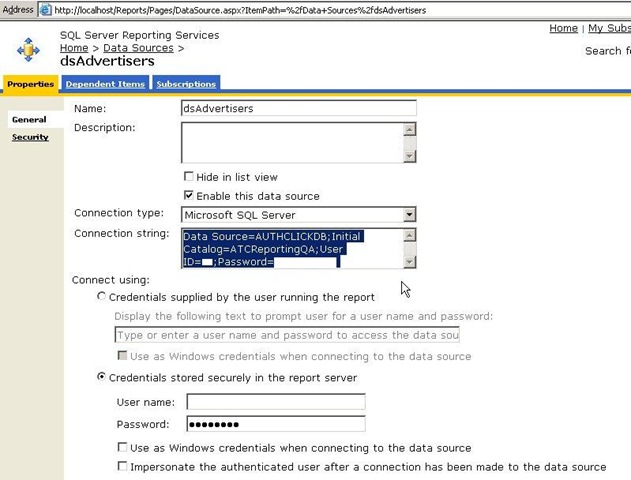
    3. Open the data source and update the data source details as per the configuration of report server(if they are different) and apply. rs3
    4. Go back to Home page and click on the report folder selected in step 1.7 , select one of the reports and click on Edit button, then click on the Data Sources link ; Make sure that the data source is configured properly. clip_image017
    5. Repeat the steps from 2.5.2 to 2.5.4 for other data sources and report folders.

How to easily identify a scheduled SQL Server Reporting Services report

Problem
Our company has hundreds of SQL Server Reporting Services reports with daily, weekly, monthly, quarterly, yearly and adhoc schedules with various rendering formats like web archive, excel, pdf, csv, xml and tiff sent to multiple users, departments and groups. Sometimes we have to manually run a subscription to resend reports on an adhoc basis or re-send the reports when the actual subscriptions failed or when the data had to be corrected.
In this tip I will show you an easy way to identify the scheduled Reporting Services report, so you can run that scheduled job to reproduce the reports and delivery of the reports.
Solution
SQL Server Reporting services has come a long way from the first time it was released for SQL Server 2000 SP4. Unfortunately there are still some rough corners where it could be improved and one such place is subscriptions.
Manually initiating a subscription is a tedious task in SQL Server Reporting Services. Each subscription in Reporting Services is setup as a SQL Server Agent job, but the job names are NOT intuitive, rather named as a Unique Identifier as shown below.
Here is a screenshot of some of the subscriptions on a Reporting Services instance.
Fortunately, SQL Server Reporting Services comes with a rich set of meta-data that is stored in tables and for today's tip we will take advantage of these tables. There are two different methods to accomplish this task and both of them are outlined below.
Option 1:
This method looks at the dbo.ReportSchedule, dbo.Subscriptions, dbo.Catalog tables of the ReportServer database along with the dbo.sysjobs table of the msdb to figure out the SQL Agent job name. Additional information is also pulled to isolate the correct report when a similarly named report is in multiple folders/paths.
SELECT

            b.name AS JobName

            e.name

            e.path

            d.description

            a.SubscriptionID

            laststatus

            eventtype

            LastRunTime

            date_created

            date_modified

    FROM ReportServer.dbo.ReportSchedule a JOIN msdb.dbo.sysjobs b

            ON a.ScheduleID b.name

            JOIN ReportServer.dbo.ReportSchedule c

            ON b.name c.ScheduleID

            JOIN ReportServer.dbo.Subscriptions d

            ON c.SubscriptionID d.SubscriptionID

            JOIN ReportServer.dbo.Catalog e

            ON d.report_oid e.itemid

    WHERE e.name 'Sales_Report'
            
From the above resultset, grab the uniqueidentifier for the JobName column and filter the job in SSMS as shown below. Once the correct job is identified, run the SQL Server Agent job to deliver the subscription.

Option 2:
This option is better than the first option and completely eliminates the manual step in Option 1 of having to find and run the SQL Agent job.
In this option, we will generate the T-SQL that is used inside the SQL Agent job directly from the tables and then just run the SQL. It's a pure SQL based solution.
After you run this query, get the column that has the EXEC command for the report you want to re-run and paste the EXEC command into a query window to execute the code to re-run the report.
SELECT

    'EXEC ReportServer.dbo.AddEvent @EventType=''TimedSubscription'', @EventData=''' CAST(a.SubscriptionID AS VARCHAR(40)) + '''' AS ReportCommand

            b.name AS JobName

            a.SubscriptionID

            e.name

            e.path

            d.description

            laststatus

            eventtype

            LastRunTime

            date_created

            date_modified

    FROM ReportServer.dbo.ReportSchedule a JOIN msdb.dbo.sysjobs b

            ON a.ScheduleID b.name

            JOIN ReportServer.dbo.ReportSchedule c

            ON b.name c.ScheduleID

            JOIN ReportServer.dbo.Subscriptions d

            ON c.SubscriptionID d.SubscriptionID

            JOIN ReportServer.dbo.Catalog e

            ON d.report_oid e.itemid

    WHERE e.name 'Sales_Report'
            

Wednesday, June 29, 2011

Moving the Report Server (SSRS) Databases to Another Computer

You can move the report server databases that are used in a current installation to a SQL Server Database Engine instance that is on a different computer. Both the reportserver and reportservertempdb databases must be moved or copied together. A Reporting Services installation requires both databases; the reportservertempdb database must be related by name to the primary reportserver database you are moving.
Moving a database does not effect scheduled operations that are currently defined for report server items.
  • Schedules will be recreated the first time that you restart the Report Server service.
  • SQL Server Agent jobs that are used to trigger a schedule will be recreated on the new database instance. You do not have to move the jobs to the new computer, but you might want to delete jobs on the computer that will no longer be used.
  • Subscriptions, cached reports, and snapshots are preserved in the moved database. If a snapshot is not picking up refreshed data after the database is moved, clear the snapshot options in Report Manager, click Apply to save your changes, re-create the schedule, and click Apply again to save your changes.
  • Temporary report and user session data that is stored in reportservertempdb are persisted when you move that database.
SQL Server provides several approaches for moving databases, including backup and restore, attach and detach, and copy. Not all approaches are appropriate for relocating an existing database to a new server instance. The approach that you should use to move the report server database will vary depending on your system availability requirements. The easiest way to move the report server databases is to attach and detach them. However, this approach requires that you take the report server offline while you detach the database. Backup and restore is a better choice if you want to minimize service disruptions, but you must run Transact-SQL commands to perform the operations. Copying the database is not recommended (specifically, by using the Copy Database Wizard); it does not preserve permission settings in the database.
Important noteImportant
The steps provided in this topic are recommended when relocating the report server database is the only change you are making to the existing installation. Migrating an entire Reporting Services installation (that is, moving the database and changing the identity of the Report Server Windows service that uses the database) requires connection reconfiguration and an encryption key reset. For more information about migrating a Reporting Services installation, see Migration (Reporting Services)1.
If you can take the report server offline, you can detach the databases to move them to the SQL Server instance you want to use. This approach preserves permissions in the databases. If you are using a SQL Server 2008 database, you must move it to another SQL Server 2008 instance. After you move the databases, you must reconfigure the report server connection to the report server database. If you are running a scale-out deployment, you must reconfigure the report server database connection for each report server in the deployment.
Use the following steps to move the databases:
  1. Backup the encryption keys for the report server database you want to move. You can use the Reporting Services Configuration tool backup the keys.
  2. Stop the Report Server service. You can use the Reporting Services Configuration tool to stop the service.
  3. Start SQL Server Management Studio and open a connection to the SQL Server instance that hosts the report server databases.
  4. Right-click the report server database, point to Tasks, and click Detach. Repeat this step for the report server temporary database.
  5. Copy or move the .mdf and .ldf files to the Data folder of the SQL Server instance you want to use. Because you are moving two databases, make sure that you move or copy all four files.
  6. In Management Studio, open a connection to the new SQL Server instance that will host the report server databases.
  7. Right-click the Databases node, and then click Attach.
  8. Click Add to select the report server database .mdf and .ldf files that you want to attach. Repeat this step for the report server temporary database.
  9. After the databases are attached, verify that the RSExecRole is a database role in the report server database and temporary database. RSExecRole must have select, insert, update, delete, and reference permissions on the report server database tables, and execute permissions on the stored procedures. For more information, see How to: Create the RSExecRole2.
  10. Start the Reporting Services Configuration tool and open a connection to the report server.
  11. On the Database page, select the new SQL Server instance, and then click Connect.
  12. Select the report server database that you just moved, and then click Apply.
  13. On the Encryption Keys page, click Restore. Specify the file that contains the backup copy of the keys and the password to unlock the file.
  14. Restart the Report Server service.
If you cannot take the report server offline, you can use backup and restore to relocate the report server databases. You should use the ‘Copy_Only’ option. Beginning in SQL Server 2008, SQL Server Management Studio supports copy-only backups. After you restore the databases, you must configure the report server to use the database on the new server instance. For more information, see the instructions at the end of this topic.

Using BACKUP and COPY_Only to Backup the Report Server Databases

When backing up the databases, set the COPY_Only option and backup type to Full.
NoteNote
Be sure to back up both the ReportServer and ReportServerTempDB databases as well as their associated log files.
For more information on using SQL Server Management Studio to backup a database, see How to: Back Up a Database (SQL Server Management Studio)3

Using RESTORE and MOVE to Relocate the Report Server Databases

When restoring the databases, you can Use the RESTORE WITH NORECOVERY argument to perform the initial restore; this keeps the database in a restoring state, giving you time to review log backups to determine which one to restore. You would then repeat the RESTORE operation but use the RESTORE WITH RECOVERY argument.
NoteNote
Be sure to restore both the ReportServer and ReportServerTempDB databases as well as their associated log files.
For more information on using SQL Server Management Studio to restore a database, see How to: Restore a Database Backup (SQL Server Management Studio)4

How to Configure the Report Server Database Connection

  1. Start the Reporting Services Configuration tool and open a connection to the report server.
  2. On the Database page, click Change Database. Click Next.
  3. Click Choose an existing report server database. Click Next.
  4. Select the SQL Server that now hosts the report server database and click Test Connection. Click Next.
  5. In Database Name, select the report server database that you want to use. Click Next.
  6. In Credentials, specify the credentials that the report server will use to connect to the report server database. Click Next.
  7. Click Next and then Finish.
NoteNote
A Reporting Services installation requires that the SQL Server Database Engine instance include the RSExecRole role. Role creation, login registration, and role assignments occur when you set the report server database connection through the Reporting Services Configuration tool. If you use alternate approaches (specifically, if you use the rsconfig.exe command prompt utility) to configure the connection, the report server will not be in a working state. You might have to write WMI code to make the report server available. For more information, see Reporting Services WMI Provider5.

Monday, August 23, 2010

Extract RDL's from SSRS

http://www.sqldbatips.com/showarticle.asp?ID=62


Overview
Reporting Services Scripter is a .NET Windows Forms application that enables scripting and transfer of all Microsoft SQL Server Reporting Services catalog items to aid in transferring them from one server to another. It can also be used to easily move items on mass from one Reporting Services folder to another on the same server. Depending on the scripting options chosen, Reporting Services Scripter can also transfer all catalog item properties such as Descriptions, History options, Execution options (including report specific and shared schedules), Subscriptions (normal and data driven) and server side report parameters.
Download Reporting Services Scripter (2.0.0.17)
View the Readme file


Key Features

  • Quickly and easily extract all RDL from a Report Server
  • Automatically generates scripts to load reports, datasource's, resources, linked reports and folders with all their associated properties to enable report migration between servers with no manual intervention e.g. avoids having to try and copy execution options between servers manually using Report Manager which is prone to mistakes and not as repeatable or efficient as scripting
  • Automatically generates command files to load scripted items onto a new server
  • Automatically transfer items from one server to another (including from SQL2000 to SQL2005 to SQL2008)
  • Generate scripts for Shared Schedules
  • Generate Scripts for System and Item Level Roles
  • Generate Scripts for Normal and Data Driven Report Subscriptions
  • Easily generate loader scripts to load existing RDL files e.g. if RDL is kept under source control then it can just generate the scripts to load the reports rather than extract the report definition as well
  • Automatically backs up reports before overwriting them
  • Easily generate scripts from the command line
  • Reverse engineer Visual Studio Report Projects from a Report Server

Tested Environments

  • Windows 2000, XP, Vista
  • Windows Server 2003, 2008
  • SQL ServerReporting Services 2000, 2005, 2008


Requirements
In order to run Reporting Services Scripter you need to have the .NET Framework 1.1 installed. In order to be able to run the generated command files or use the Transfer mode of deployment you will need the Reporting Services Management Tools installed, specifically the command line utility RS.EXE (this is version specific and the correct versions for your environment are required for full functionality)

Deserialization failed: The 'DataType' attribute is not declared. Line 3020, position 20

http://connect.microsoft.com/VisualStudio/feedback/details/405739/vs-2008-rs-2008-error-deserialization-failed-the-datatype-attribute-is-not-declared

The workaround
the bug:
<-ParameterValues>
         <-ParameterValue>
            <-Value DataType="Integer">1
            <-Label>All
         <-/ParameterValue>
         <-ParameterValue>
            <-Value DataType="Integer">0
            <-Label>T/R
         <-/ParameterValue>
         <-ParameterValue>
            <-Value DataType="Integer">-1
            <-Label>SCD
         <-/ParameterValue>
        <-/ParameterValues>

solution (remome all : DataType="Integer"):

<-ParameterValues>
         <-ParameterValue>
            <-Value>1
            <-Label>All
         <-/ParameterValue>
         <-ParameterValue>
            <-Value>0
            <-Label>T/R
         <-/ParameterValue>
         <-ParameterValue>
            <-Value>-1
            <-Label>SCD
         <-/ParameterValue>
        <-/ParameterValues>

Tuesday, August 3, 2010

End of Amnesia (Avoiding Divide By Zero Errors)

People often ask how to avoid divide by zero problems in their Reporting Services reports. Let's say you have a textbox that calculates profit margin via the expression:
=Fields!Price.Value / Fields!Cost.Value
This works fine unless a value in the Cost field is zero (and is not an integer or double), in which case you will get '#error' displayed in your report. This is because a divide by zero with a decimal field will throw an exception. This exception is caught by the report processing engine and #error is displayed. If you would rather have a string like "N/A" instead of #error, you might think about creating a Reporting Services expression using the IIf function:
=IIf(Fields!Cost.Value = 0, "N/A", Fields!Price.Value / Fields!Cost.Value)
But when you preview the report, you still see #error in your report. What gives?
If you take a look at the IIf function description in the Visual Basic documentation, you will see the following:
As part of preparing the argument list for the call to IIf, the Visual Basic compiler calls every function in every expression. This means that you cannot rely on a particular function not being called if the other argument is selected by Expression.
This means that even through the value for cost is zero, the error will still be generated. So how do you work around this? You have to force the expression evaluation to avoid the division with a nested IIf:
=IIf(Fields!Cost.Value = 0, "N/A", Fields!Price.Value / IIf(Fields!Cost.Value = 0, 1, Fields!Cost.Value))
The nested IIf is evaluated first so that the divide by zero can be avoided but is not used by the outer expression if it is zero.
As an interesting side note, the Arithemtic Operators topic in the Visual Basic documentation seems to say that a DivideByZeroException is thrown for dividing by anything but the Double data type. I have not found this to be the case. Try this simple application in VB:
Dim a, b As Integer
a = 1
b = 0
MsgBox (a / b)
You will get "Infinity", despite what the documentation says. Anyway, the use of the expression above in your report will ensure that you will get the desired results, no matter what data type you are using.

Friday, July 30, 2010

SSRS 2008 Conditional Column Visibility Whitespace Issue

To eliminate white space due to hidden columns :

1. in the grouping pane, click on thesmall black triangle and select "Advanced Mode" to show static members in the grouping pane
2. under the column groupings, you should now see a list of gray "(Static)" items. Select the item that represents the column that you want to conditionally hide. Once selected, the property grid window should show the tablix member properties for that static column. In those tablix member properties, make sure to set the Visibility.Hidden expression to the desired condition

By doing this, you will hide the entire static column tablix member and as a resultthe whitespace will disappear.

How to display dataset Field value in Page Header of SSRS report?


Put the dataset feild value in any textbox inside the report body ,then in the report header textbox put the expression as
ReportItems!.Value ,where the textbox name should be the textbox you put in the report body having the dataset field value.

How to repeat group header on each new page on Tablix in SSRS 2008


In SSRS 2005, you go to Table properties and tick the "Repeat header rows on each page" option under Row Headers. This will do the trick; however, it does not necessarily work in SSRS 2008 especially if you have added grouping on to the tablix, which is very annoying.
In SSRS 2008, under Row Groups - Column Groups pane, click the pointed downward arrow at the corner right then select "Advanced Mode".  For row grouping, under Row Groups, select "Static". In the properties for "Static", set the following:
- KeepTogether = True
- KeepWithGroup = After
- RepeatOnNewPage = True

Tablix headers not repeating in SSRS 2008

The "Repeat header rows on each page" tablix property does not work in SSRS 2008 but works on SSRS 2005. This is clearly a bug and very annoying.
To turn this functionality on:
there is a small down arrow (not the down arrow on the group bar). Clicking that arrow will allow you to view advanced properties. When you select advanced properties you will see your groups in orange bars and the static rows in gray.
Set the KeepWithGroup property in the following way:
  • For a static row that is above a group, click After.
  • For a static row that is below a group, click Before.
If the above does not work then check the number of static rows above the Details group. Make sure that there are EXACTLY same number of the static rows. This nomally happens when you happen to delete a row(s) or grouping from the tablix.  If the number of static rows does not match, then re-create the tablix from scratch.

Understanding Tablix Data Region Cells, Rows, and Columns

 Understanding Tablix Data Region Cells, Rows, and Columns
http://msdn.microsoft.com/en-us/library/cc627578.aspx

To control how the rows and columns of a Tablix data region display data in a report, you must understand how to specify rows and columns for detail data, for group data, and for labels and totals. In many cases, you can use the default structures for a table, matrix, or list to display your data. For more information, see Adding a Table (Reporting Services) [ http://msdn.microsoft.com/en-us/library/ms159169.aspx ] , Adding a Matrix (Reporting Services) [ http://msdn.microsoft.com/en-us/library/ms157334.aspx ] , or Adding a List (Reporting Services) [ http://msdn.microsoft.com/en-us/library/ms159121.aspx ] .
A Tablix data region displays detail data on detail rows and detail columns and grouped data on group rows and group columns. When you add row groups and column groups to a Tablix data region, rows and columns on which to display the data are automatically added. You can manually add and remove rows and columns to customize a Tablix data region and control the way your data displays in the report.
To understand how to customize a Tablix data region, you should first understand how to interpret the visual cues you see when you select a Tablix data region on the design surface.

Visual cues on a Tablix data region help you work with a Tablix data region to display the data you want.

Row and Column Handles

When you select a Tablix data region, the row and column handle graphics indicate the purpose of each row and column. Handles indicate rows and columns that are inside a group or outside a group. The following table shows a variety of handle displays.
IconDescription
Row handle with 3 parallel lines for details rowOnly the details group on the row group hierarchy
Row handle with details row and one outer groupOne outer group and the child details group
Two parallel brackets showing nested groupsOne outer group, one inner group; no details group
2 brackets & 3 stacked lines for nested & detailsOne outer group, one inner group, and the child details group
One outer group with footer row, one inner groupOne outer group with a footer row for totals and one inner group
outer group bracket, inner group bracket, detailsOne outer group with a footer row for totals, one inner group with a footer row for totals, and one details row
parent header and footer, and also child groupOne outer group with a header for labels and a footer for totals, and an inner group; no details group

Group Rows

Rows inside a group repeat once per unique group value and are typically used for aggregate summaries. Rows outside a group repeat once with respect to the group and are used for labels or subtotals. When you select a Tablix cell, row and column handles and brackets inside the Tablix data region show the groups to which a cell belongs. This figure displays the following visual cues:
  • Row and column handles that indicate group associations.
  • Highlighted group indicators that show the innermost group membership for a selected cell.
  • Group indicators that show all group memberships for a selected cell.
Table with detail and nested row groups

Total Rows

After you add row and column groups, you can add a row to display totals for columns and a column to display totals for rows. The following figure shows a matrix with both row and column groups, and a total row and a total column.
Tablix data region

Grouping Pane

The Grouping pane displays the row and column groups for the currently selected Tablix data region on the design surface. The following figure shows the Grouping pane for this Tablix data region.
Grouping pane for nested row and column groupsThe Row Groups pane shows the parent group Category and child group Subcat. The Column groups pane shows the parent group Geography and child group CountryRegion, and also the Year group, which is an adjacent group to the Geography group. When you select the Subcat group in the Row Groups pane, the group bar turns a darker shade of orange, and the corresponding row group member cell is selected on the design surface.

Rows and row groups and columns and column groups have identical relationships. The following discussion describes how to add rows to display detail and group data on rows in a Tablix data region, but the same principles apply to adding columns to display detail and grouped data.
For each row in a Tablix data region, a row is either inside or outside each row group. If the row is inside a row group, it repeats once for every unique value of the group, known as a group instance. If the row is outside a row group, it repeats only once in relation to that group. Rows outside all row groups are static and repeat only once for the data region. For example, a table header or footer row is a static row. Rows that repeat with at least one group are dynamic.
When you have nested groups, a row can be inside a parent group but outside a child group. The row repeats for every group value in the parent group, but displays only once in relation to the child group. To display labels or totals for a group, add a row outside the group. To display data that changes for every group instance, add a row inside the group.
When you have detail groups, each detail row is inside the detail group. The row repeats for every value in the dataset query result set.
For more information about group hierarchies, see Understanding Groups (Reporting Services) [ http://msdn.microsoft.com/en-us/library/bb677373.aspx ] .
The following figure shows a Tablix data region with nested row groups and a details group.
Design view, add total rows to group and tableFor a Tablix data region that displays detail data, the details group is the innermost child group. Rows that you add to a details group repeat once per row in the result set for the query for the dataset linked to this Tablix data region. The following figure shows the last page of the rendered report. In this figure, you can see the last detail rows and the subtotal row for the last order.
Preview, Table with Group Totals, last rowsFor each column in a Tablix data region, the same principles apply. For example, a column is either inside or outside each column group; to display totals, add a column outside the group.
To remove rows and columns associated to a group, you can delete the group. When you delete a group, you have the choice between deleting the group definition only or deleting the group and all its associated rows and columns. By deleting just the group, you preserve the row and column layout on the data region. When you delete the group and its related rows and columns, you are deleting all static rows and columns (including group headers and footers) and dynamic rows and columns (including group instances) that are associated with that group.
For step-by-step instructions about adding or deleting rows and columns, see How to: Insert or Delete a Row (Reporting Services) [ http://msdn.microsoft.com/en-us/library/ms155913.aspx ] and How to: Insert or Delete a Column (Reporting Services) [ http://msdn.microsoft.com/en-us/library/ms155996.aspx ] .

Tablix cells belong to one of four Tablix areas: the Tablix body, Tablix row or Tablix column group areas, or the Tablix corner. Although each cell can potentially display any value in the dataset, the default function for each cell is determined by its location. For detailed information about Tablix areas, see Understanding Tablix Data Region Areas [ http://msdn.microsoft.com/en-us/library/cc645966.aspx ] .
By default, cells in Tablix row and column group areas represent group members. Group members are organized into multiple tree structures in the report definition. The row group hierarchy expands horizontally. The column group hierarchy expands vertically. These cells are added automatically when you create a group, and display the unique values for a group at run time.
Cells in the Tablix corner are created when there are both row and column group areas. You can merge cells in this area to create a label or embed another report item.
Cells in the Tablix body area can display detail data when the cell is in a detail row or column and aggregated group data when the cell is in a group row or column. The scope for the data in a cell is the intersection of the innermost row group and innermost column group to which the cell belongs.
NoteNote
The actual data that is displayed for each cell is the evaluated expression for the report item that the cell contains, which is typically a text box. In a cell that belongs to a detail row or column, the expression defaults to the detail data (for example, [LineTotal]). In a cell that does not belong to a detail row or column, the expression defaults to an aggregate function (for example, Sum[LineTotal]). If an expression does not specify an aggregate function even though the cell belongs to a group row or column, the first value in the group is displayed. For more information about aggregates, see Calculating Totals and Other Aggregates (Reporting Services) [ http://msdn.microsoft.com/en-us/library/bb630415.aspx ] .

Merging and Splitting Cells

Inside a Tablix area, you can merge multiple adjacent cells together. For example, you can create cells for labels that span multiple columns or rows.
In the Tablix corner area, cells can be combined in only one direction at a time: horizontally across columns or vertically down rows. To merge a block of cells, merge the cells horizontally first. After all cells have been merged into a single cell in each row, select adjacent cells (you can select all adjacent cells in a column) and merge them.
In the Tablix body area, cells can only be merged horizontally. Merging cells vertically is not supported.
For more information, see How to: Merge Cells in a Data Region (Reporting Services) [ http://msdn.microsoft.com/en-us/library/bb630416.aspx ] .
You can split a cell that was previously merged. You can split cells horizontally across columns or vertically down rows. To split a cell into a block of cells, split the cell horizontally first, and then split vertically as many times as necessary.


Other Resources

Working with Data Regions [ http://msdn.microsoft.com/en-us/library/ms156394.aspx ]
Working with Report Data [ http://msdn.microsoft.com/en-us/library/cc281181.aspx ]
Report Layout How-to Topics [ http://msdn.microsoft.com/en-us/library/cc281084.aspx ]
Report Designer F1 Help [ http://msdn.microsoft.com/en-us/library/ms186946.aspx ]

Thursday, July 29, 2010

Controlling Row and Column Headings (SSRS 2008)

http://msdn.microsoft.com/en-us/library/cc281227.aspx

A table, matrix, or list data region can span multiple pages horizontally or vertically. You can specify whether to repeat row or column headings on each page. In an interactive renderer such as Report Manager or report preview, you can also specify whether to freeze row or column headings to keep them in view when you scroll across or down a report. In a table or matrix, the first row usually contains column headings that label data in each column; the first column usually contains row headings that label the data in each row. For nested groups, you might want to repeat the initial set of row and column headings that contain group labels. By default, a list data region does not include headings.
How you control whether headings repeat or freeze depends on the following:
  • For column headings that repeat at the top of each page:

    • Whether the table or matrix has a column group area that expands horizontally.
    • Whether you want to control all rows that are associated with column groups as a unit.
  • For row headings that repeat along the side of each page:

    • Whether the table or matrix has a row group area that expands vertically. Row headings are supported only for row groups with a row group header.

A table or matrix is a template for the underlying tablix data region. A tablix data region has four possible areas: the row group area that controls rows that expand down a report, the column group area that controls columns that expand across a report, the body that displays data, and the corner. To understand where to set properties to control repeating or freezing headers, it helps to understand that there are two representations for a tablix data region:
  • In the report definition   Each row or column in a tablix data region definition is a tablix member of a specific row or column group. A tablix member is static or dynamic. A static tablix member contains labels or subtotals and repeats once per group. A dynamic tablix member contains group values and repeats once per unique value of a group, also known as a group instance.
  • On the design surface   On the design surface, dotted lines divide a tablix data region into the four areas. Each cell in a tablix data region area is organized into rows and columns. Rows and columns are associated with groups, including the details group. For a selected tablix data region, row and column handles and highlight bars indicate group membership. Cells in the row group or column group area represent group headers for tablix members. A single row or column can be associated with multiple groups.
    For more information, see Understanding Tablix Data Region Areas [ http://msdn.microsoft.com/en-us/library/cc645966.aspx ] and Understanding Tablix Data Region Cells, Rows, and Columns [ http://msdn.microsoft.com/en-us/library/cc627578.aspx ] .
For tablix data regions with row group or column group areas, control the associated rows and columns by setting properties on tablix data region. For all other cases, control the rows and columns by setting properties in the Properties pane for the selected tablix member. For step-by-step instructions, see How to: Display Row and Column Headers on Multiple Pages (Reporting Services) [ http://msdn.microsoft.com/en-us/library/cc627566.aspx ] and How to: Keep Headers Visible When Scrolling Through a Report (Reporting Services) [ http://msdn.microsoft.com/en-us/library/bb934257.aspx ] .

The most common examples of tablix data regions are for a matrix, a table with no groups, and a table with a row group and a row group header, and a table with a row group but no row group header. To control how to repeat or freeze headers, you must determine if the rows or columns that you want to control are associated with a group header in the row groups or column groups area.
The following sections provide examples for common layouts for a tablix data region:

Matrix

By default, a simple matrix has one row group and one column group. The following figure shows a matrix with a row group that is based on Category and a column group that is based on Geography:
Matrix, Category row and Geography column groupThe dotted lines show the four tablix areas. The row group area has a row group header that controls the category labels in the first column. Similarly, the column group area has a column group header that controls the geography labels in the first row. In preview, as the matrix expands across the page, the first row displays the column headings, as shown in the following figure:
Preview for rendered matrix with expanded groupsTo repeat or freeze column headings in the first row, set properties for column headers on the tablix data region. Column headers for nested column groups are automatically included.
To repeat or freeze row headings in the first column, set properties for row headers on the tablix data region. Row headers for nested row groups are automatically included.
Return to top

Table with no row groups

By default, a simple table with no groups does include the details group. The following figure shows a table that displays category, order number, and sales data:
Design, table with one static, one dynamic rowThere are no dotted lines because the table consists only of the tablix body area. The first row displays column headers, and represents a static tablix member that is not associated with a group. The second row displays detail data, and represents a dynamic tablix member that is associated with the details group. The following figure shows the table in preview:
Preview, table with one static, one dynamic rowTo repeat or freeze column headings, set properties on the tablix member for static row that is part of the tablix data region definition. To select the static row, you must use the Advanced mode of the Grouping pane. The following figure shows the Row Groups pane:
Row Groups, table with 1 static, 1 dynamic rowIn Advanced mode, the following figure shows the static and dynamic tablix members for the row groups in the table:
Row Groups, Advanced for default tableTo repeat or freeze column headings for the tablix member, select the static row that is labeled (Static). The properties pane displays the properties for the selected tablix member. By setting properties for this tablix member, you can control how the first row repeats or stays in view.
Return to top

Table with row groups and a row group area

If you add a row group to a simple table, a row group area is added to the table on the design surface. The following figure shows a table with a row group that is based on Category:
Design, table with one row group and detailsThe dotted lines show the tablix row groups area and the tablix body area. The row group area has a row group header but no column group header. The following figure shows this table in preview:
Preview, table with one row group and detailsTo repeat or freeze column headings, use the same approach as the previous example. The following figure shows the default view of the Row Groups pane:
Row Groups, Default with dynamic membersUse the Advanced mode of the Row Groups pane to display the tablix members, as shown in the following figure:
Row Groups, Advanced mode with static membersFor tablix members are listed: Static, (Static), Category, and (Details). A tablix member that includes parentheses () indicates that there is no corresponding group header. To repeat or freeze column headings, select the top Static tablix member, and set properties in the Properties pane.
Return to top

Table with row groups and no row group area

A table can have row groups but no row groups area in several ways. Two possible ways for this to happen include:
  • Start with a table with row groups and a row group area and delete the columns for the row group area. Delete the columns only and not the groups. For example, you might want to control the table format to be a simple grid.
  • Upgrade a report that was created for a previous RDL version, before tablix data regions were introduced.
The following figure shows a table with a row group but no row group area on the design surface:
Design, table has row group but no group headerThe table has three rows. The first row contains column headers. The second row contains the group value and subtotals. The third row contains the detail data. There are no dotted lines because there is only a tablix body area. The following figure shows this table in preview:
Preview, table has row group but no group headerTo control how the rows repeat or stay in view, you must set properties on the tablix member for each row. In default mode, there is no difference between this example and the previous example for a table with a row group and a group header. The following figure shows the Grouping pane in default mode for this table:
Row Groups, Default with dynamic membersHowever, in advanced mode, this layout structure shows a different set of tablix members. The following figure shows the Grouping pane in advanced mode for this table:
Row Groups, Advanced, no group header.In the Row Groups pane, the following tablix members are listed: (Static), (Category), (Static), and (Details). To repeat or freeze column headings, select the top (Static) tablix member, and set properties in the Properties pane.
Return to top

Renderers vary in support for repeating or freezing headers.
Renderers that use physical pages (PDF, Image, Print) support the following features:
  • Repeat row headers when a tablix data region expands horizontally across multiple pages.
  • Repeat column headers when a tablix data region expands vertically down multiple pages.
In addition, renderers that use soft page breaks (Report Manager, report preview, or the report viewer control) support the following features:
  • Keep row headers in view when you scroll horizontally across a report.
  • Keep column headers in view when you scroll vertically down a report.
For example, if you set properties to repeat column headers and to keep column headers in view, when you export the report to Excel, the column headers appear at the top of each worksheet and the Freeze Panes feature is enabled for that row.
For more information, see Understanding Rendering Behaviors [ http://msdn.microsoft.com/en-us/library/bb677573.aspx ] .


Other Resources

Grouping and Sorting Report Data [ http://msdn.microsoft.com/en-us/library/cc281299.aspx ]
Working with Tablix Data Regions [ http://msdn.microsoft.com/en-us/library/bb934258.aspx ]
Understanding Pagination in Reporting Services [ http://msdn.microsoft.com/en-us/library/bb677374.aspx ]
Available Rendering Extensions (Reporting Services) [ http://msdn.microsoft.com/en-us/library/cc627537.aspx ]
Report Definition Tablix Overview Diagram [ http://msdn.microsoft.com/en-us/library/bb677419.aspx ]