Showing posts with label SSIS. Show all posts

Friday, October 12, 2012

Smooth SSIS Upgrade to SQL Server 2012

TIP #1: Edit Package Configuration and Data Source after upgrading

clip_image005
The first step to upgrade an SSIS solution is to run the SSIS Package Upgrade Wizard. The SSIS Package Upgrade Wizard makes appropriate changes to package properties and upgrades the package format.
The wizard launches when you open a pre-SQL Server 2012 package in the SQL Server Data Tools for the first time. SQL Server Data Tools replaces (BIDs). The wizard can also be launched manually by running SSISUpgrade.exe, which is located under %ProgramFiles%\Microsoft SQL Server\110\DTS\Binn.
It is critical to note that the SSIS Package Upgrade Wizard does not upgrade settings such as connection strings that are defined in the package configurations. After a package upgrade, you may need to make some manual changes to the package configuration to run the upgraded package successfully.
For example, you have an SSIS 2005 package. The package uses an OLE DB connection manager to connect to the AdventureWorks database in a local SQL Server 2005 instance. The package also uses an XML package configuration file to dynamically configure the ConnectionString property of the OLE DB connection manager. The following shows the contents of the XML package configuration file.
clip_image001
You have set up a machine with a standalone SQL Server 2012 installation. You move the SSIS 2005 package to the machine and run the SSIS Package Upgrade Wizard to upgrade the package to SQL Server 2012. When the wizard finishes, you need to manually change the provider name from SQLNCLI.1 to SQLNCLI11.1 in the XML package configuration file to run the upgraded package successfully. The wizard does not update package configuration files.
If you don’t update the provider name in the configuration file, the file configures the OLE DB connection manager to use the SQLNCLI.1 provider that is the SQL Server 2005 Native Client Library. SQLNCLI11.1 is the SQL Server 2012 Native Client Library. Because the SQL Server 2005 Native Client Library is not included in SQL Server 2012, the following error message will appear when you open or execute the upgraded package on the machine where SQL Server 2012 is installed:
The requested OLE DB provider SQLNCLI.1 is not registered. If the 32-bit driver is not installed, run the package in 64-bit mode. Error code: 0×00000000. An OLE DB record is available. Source: “Microsoft OLE DB Service Components” Hresult: 0×80040154 Description: “Class not registered”.
So, if your pre-SQL Server 2012 package uses any kind of package configurations, it is important to remember that you may need to manually update the content of the package configurations after you upgrade the package to SQL Server 2012. This applies to the different types of configurations, such as XML configuration files.
Connection strings that require updates and are stored in data source files or set by expressions, need to be updated manually.

TIP #2: Convert to project deployment model using Project Conversion Wizard

SQL Server 2012 SSIS supports two deployment models: the package deployment model and the project deployment model. The package deployment model was available in previous releases of SSIS and is the default deployment model for upgraded packages. In this model, the unit of deployment is the package. The project deployment model is new in SQL Server 2012 and provides additional package deployment and management features such as parameters and the Integration Services catalog. The unit of deployment is the project.
Please read Project Deployment Overview in SQL Server “Denali” CTP1 – SSIS (http://social.technet.microsoft.com/wiki/contents/articles/project-deployment-overview-in-sql-server-quot-denali-quot-ctp1-ssis.aspx ) for a detailed walk through as well as comparison between these two deployment models.
Read Projects in SQL Server “Denali” CTP1 – SSIS (http://social.technet.microsoft.com/wiki/contents/articles/projects-in-sql-server-denali-ctp1-ssis.aspx) for a thorough explanation of the new project concept.
To convert a package to the project deployment, right click the project in Solution Explorer and then click Convert to Project Deployment Model. The Project Conversion Wizard launches and walks you through the conversion process.
clip_image008

TIP #3: Update Execute Package Task to use project reference and use parameter to pass data from parent package to child package

If an SSIS package contains an Execute Package Task, the Project Conversion Wizard prompts you to update the task to use the project reference.
For example, your SSIS project contains several packages. Inside the project, one package (typically called the parent package) runs another package (typically called the child package) by using an Execute Package Task. In Pre-SQL Server 2012 releases of SSIS, the parent package references the child package by using a File connection manager. At deployment, you need to remember to update the File connection manager to ensure that it points to the new location of the child package.
In SQL Server 2012 Integration Services you can configure the parent package to reference the child package by name when the child package is included in the same project as the parent package. Using this project reference makes the deployment experience much smoother. You don’t need to remember to update the reference between the parent package and the child package at deployment. For a thorough explanation of the project reference in the Execute Package Task, please see Changes to the Execute Package Task (http://blogs.msdn.com/b/mattm/archive/2011/07/18/changes-to-the-execute-package-task.aspx).
In previous releases of SSIS, you pass data from the parent package to the child package by creating a package configuration that uses the parent variable configuration type. This enables a child package that is run from a parent package to access a variable in the parent.
It is recommended that you configure the Execute Package Task to use parameter binding to pass data from the parent package to the child package. Parameters make this task easier. For example, you want a parent package to dynamically determine the number of days in a current month and have the child package perform a task for that number of times. You can create a variable in the parent package that represents the number of days and create a parameter in the child package. Then in the Execute Package Task, you bind the parameter in the child package to the variable in the parent package.
clip_image010
Please read Parameters in SQL Server “Denali” CTP1 – SSIS (http://social.technet.microsoft.com/wiki/contents/articles/parameters-in-sql-server-denali-ctp1-ssis.aspx) for a description of parameters and the numerous benefits they offer.

TIP #4: Parameterize PackageName property of Execute Package Task to dynamically configure which child package to run at execution time

Suppose your SSIS 2008 package has an Execute Package Task, and the package uses a File connection manager to connect to a child package. You dynamically assign which child package the Execute Package Task runs by configuring the connection string property of the File connection manager.
The following is the content of the XML package configuration file used by your SSIS 2008 package.
clip_image011
When the Project Conversion Wizard converts the package to the project deployment model and updates the Execute Package Task to use the project reference, the File connection manager that was used to connect to the child package is no longer used by the Execute Package Task. To continue to dynamically determine which child package the task runs, you create a parameter and map that parameter to the PackageName property of the Execute Package Task as shown in the following image.
clip_image013

TIP #5: Convert package configuration to parameter when possible

Parameters are new to SQL Server 2012 Integration Services and are the replacement for package configurations. You use parameters to assign values to package properties, whether at design time or run time. The values are pushed to a package when it is executed rather than having the package pull values from the package configurations.
The Project Conversion Wizard prompts you to optionally convert package configurations to parameters. It is possible that you might choose to keep a package configuration as an intermediate step of upgrading to SQL Server 2012. When your package has both configuration values and parameter values, it is important to understand the order in which these values are applied. Package configuration values will be applied first. If there are also parameter values for the same properties, these values will be applied next and will overwrite the package configuration values.

Friday, July 8, 2011

How to insert and update table in SSIS (Upsert or Merge)?

Source:http://pragmaticworks.com/forum/yaf_postsm46_How-to-insert-and-update-table-in-SSIS--Upsert-or-Merge.aspx#post46

Many times you have need to Insert new record or Update existing record in target table using SSIS. This can be done in 2 ways.

1. Combination of OLEDB Destination and OLEDB Command. This approach can be very slow if you have lots of updates. For large amount of records please check the next approach.
http://beingoyen.blogspo...e-instead-of-insert.html


2. Using TaskFactory Upsert Destination.
http://pragmaticworks.co...p_Upsert_Destination.htm

Upsert Destination Tutorial

http://pragmaticworks.co...rt_Destination_Video.htm

Upsert Destination (Batch Update Or Insert)

 SSISUpsert Destination Helps synchronize two systems no matter the source or destination. Many companies struggle with the development of loading procedures that determine whether the row is new or to be updated. The Upsert Destination reads the rows coming into the data flow and detects if the row should be inserted or updated. This saves the developer a long development cycle and could save up to 90% on each execution of a package.

Key Features:
  • Conditionally inserts or updates data into a table. Inserts are performed using bulk insert which is significantly faster compared to row-by-row approach. There are four methods in which data can be updated giving the user a great amount of control on whether data should be updated or not.
    1. Bulk update - Updates will be performed in the fastest amount of time because no data compare is performed. This is by far the fastest way to perform updates
    2. Column Compare - Updates will only be performed based on what columns the user selects to compare. If the data in the selected columns does not match, the update will be performed. Otherwise it will be ignored.
    3. DateTime Compare - Updates will only be performed based on a datetime column being compared from the source to a column in the destination.
    4. Timestamp Compare - Updates will only be performed based on a timestamp column being compared from the source to a column in the destination.
  • Currently supports SQL 2005 and SQL 2008 as destination
  • Easy to use User Interface


SSIS Upsert Test

SSIS auto generate update scripts

Specify the TableName in @TableName variable to create the Update script to be used for SSIS.

DECLARE @counter int;
DECLARE @QueryString nvarchar(2400) = ''
DECLARE @ColumnName nvarchar(120);
DECLARE @TableName nvarchar(120) = 'MyTable'
CREATE TABLE #ColumnList
(
ID int IDENTITY(1,1)
,ColumnName varchar(1200)
)
INSERT #ColumnList
select sys.columns.name from sys.columns
inner join sys.tables on sys.tables.object_id = sys.columns.object_id
where sys.tables.name = @TableName
and sys.columns.name <> 'ID'
SET @counter = 1
SET @QueryString = 'UPDATE dbo.' + @TableName + '
SET '
SET @ColumnName = (SELECT ColumnName FROM #ColumnList WHERE ID=@counter)
SET @QueryString = @QueryString + '
' + @ColumnName+ ' = ? '
SET @counter = @counter + 1;
WHILE @counter <= (SELECT COUNT(*) FROM #ColumnList)
BEGIN
SET @ColumnName = (SELECT ColumnName FROM #ColumnList WHERE ID=@counter)
SET @QueryString = @QueryString + '
,' + @ColumnName+ ' = ? '
SET @counter = @counter + 1;
END
SET @QueryString = @QueryString + '
WHERE ID = ?;'
PRINT @QueryString
DROP TABLE #ColumnList


source: http://beingoyen.blogspot.com/2010/03/ssis-auto-generate-update-scripts.html

运用SQL Server 2005 SSIS变量

一、 SSIS变量简介
SSIS(SQL Server Integration Services,SQL Server整 合服务)变量分为两种,一种是系统变量,一种用户定义的变量。系统变量包含有关包、容器、任务或事件处理程序的非常有用的信息。例如,在运行 时,MachineName 系统变量包含运行包的计算机的名称,StartTime 变量包含包开始运行的时间。系统变量是只读的。在 SSIS 中,用户变量是用户在开发的过程中根据需要申明的变量。用户变量可以使用在脚本中,在由优先约束、For 循环容器、派生列转换和条件性拆分转换使用的表达式中,以及在更新属性值的属性表达式中。
在各种编程语言中申明的变量一般情况下都会有 作用范围的,SSIS变量也不例外,SSIS变量也是有作用范围的。根据作用范围分类,变量分为包变量和组件变量。包变量在包任何一个组件中都可以调用, 组件变量只能够在申明变量的组件中有效。在变量的窗口中可以看到变量的作用域(如图1所示)。BeginDate就是TestPackage包变量,而i 是数据转换这个数据流组件的变量。
如何灵活运用SQL Server 2005 SSIS变量
图1
二、 SSIS用户变量的申明、赋值、使用
1、 申明变量
申明变量非常简单,如果你要申明包变量,只要单击控制流选项卡,然后在包开发区域空白处单击右键选择变量命令(出现如图1的画面),单击新建变量按钮就新建一个变量,输入名称,选择数据类型,赋初值就完成了 (如图2)。
红色方框是新建变量按钮,蓝色方框是删除按钮。如果要申明某数据流任务组件使用的变量,只要双击该数据流任务组件,在流控制选项卡空白的地方单击右键选择变量命令,在变量窗口中新建一个变量,这时变量的作用域就是你所选的流任务组件。
如何灵活运用SQL Server 2005 SSIS变量
图2
2、 赋值
在实际开发中,除了在变量申明的时候给变量赋值外,笔者还摸索了两种方式给变量赋值,一种是通过执行 SQL 任务组件返回值的方式给变量赋值,一种是通过脚本组件来给变量赋值。
利用执行 SQL 任务组件方法是先设置好组件的数据库连接属性,然后输入从数据取数据的SQL语句,设置组件返回的结果集为单行。在结果集界面中单击“新建“,在结果集那 一列输入你刚才SQL 语句中返回列的名称,在变量名称列选择你要赋值的变量(过程如图3、图4所示)。
如何灵活运用SQL Server 2005 SSIS变量
图3
如何灵活运用SQL Server 2005 SSIS变量
图4
图3中红色方框中SQL语句非常简单,返回单行,结果是1。在图4中,将返回的result列的一行赋值给用户变量i。
利用脚本组件赋值变量比较简单,只需要设置脚本组件的ReadOnlyvariable或者ReadWriteVariable,将变量的名称设置为他们的值(多个变量以逗号分隔),它们的区别是前者在脚本组件只能够读,后者可以读写。然后在脚本组件中通过
Dts.Variables("i").Value = 1
3、 变量的使用
变量在ssis中使用的地方很多,笔者介绍两个典型的应用。
(1) 执行 SQL 任务组件的参数
假定申明了一个日期类型变量StartDate,用户需要通过从某个表中选择在StartDate日期之前的数据,这个时候需要将StartDate作为参数传给执行 SQL 任务组件。在执行 SQL 任务组件输入SQL的地方输入如下命令语句:
SELECT * FROM TABLE_a WHERE 日期字段 < ?
然后在参数据映射界面新增映射,在变量名称列选择用户变量StartDate,选择类型为DATE,在参数名称列输入给参数取的名称。这样就可以将StartDate变量传给SQL任务组件的SQL语句了。
(2) 在脚本组件中赋值
可以在脚本组件中通过Dts.Variables("i").Value = 1方式赋值给变量,也可以通过这种方式来使用变量。比如Dts.Variables("other_variable").Value = Dts.Variables("i").Value+1,这个语句是可以在脚本组件中执行的,将i变量加1后赋值给另外一个变量。

SSIS的检查点文件用法

如果你是一个ETL应用程序开发人员或是管理员,那么你可能会遇到的一个问题就是发生失败后重新运行整个ETL应用程序。从失败处重新运行应用程序通常是不可能的,这有许多原因,但是主要是由于很难执行日志记录和维护应用程序的每一步以及配置基于可用日志的执行。SQL Server集成服务提供了一个在某种程度上自动从失败处重启处理的机制。这个机制是通过使用检查点文件来提供的。它帮助我们配置ETL解决方案在发生一个执行错误后的执行流。这篇文章解释了检查点文件和集成服务的一些有用任务的使用。
这篇文章包括:
· 建立检查点文档
· 在for loop中的检查点用法
· 在事件中的检查点用法
· 其它约束
建立检查点文档
检查点文件的配置从建立三个包的属性开始:CheckpointFileName、CheckpointUsage、SaveCheckpoints。 这些属性在检查点分类下和包的属性一样有效(看分类视图的属性)。CheckpointFileName 运行我们设置检查点文件的路径。因为信息是以XML格式存储的,给这个文件一个XML扩展会更好,不过这不是必需的(例如D:Checkpoint Files/LoadDataPackage.xml)。
第二个属性,CheckpointUsage 告诉集成服务这个包是否需要一个检查点文件。它可以使用三个值。Never、IfExists和Always。Never 表示没有使用检查点文件,包的执行必须从头开始(或者失败后重启)。Always 要求每一个执行使用检查点文件。一旦设置为Always,没有检查点文件包就不能启动。IfExists表示如果只存在检查点文件,那么包使用检查点文 件。IfExists是CheckpointUsage最好的设置,因为如果包发生错误,那么将只存在检查点文件。记住,一旦设置了检查点设置,包会在执 行过程中在给定位置创建检查点文件,然后在成功执行后将它删除。只有在失败的情况下才会将检查点文件保留下来。

SaveChekpoints 表示包是否需要保存检查点。它的值是true或false。如果包需要在失败后重启那么这个值要设置为true。
最后一步是配置每一个任务,指定检查点中要包含的内容。这通过FailPackageOnFailure 属性来完成。这个属性要求设置为True,使得检查点中的任务可用。
好了,让我们把这个建起来。打开商业智能开发套件,并启动一个新的集成服务项目。添加两个文件系统任务。创建三个变量用于为两个文本文件保存两个物理路径和一个为目的地保存的路径。如下面所示地命名变量。你可以根据你的文件夹结构改变路径。
SSIS的检查点文件用法
这是假定场景:我们从客户端接收两个文本文件到E:ClientsFiles文件夹下。一个包加载了这些文件并将它们拷贝到目的地(D:FilesReceived)。一旦拷贝了它们,它就提取数据并将其转换到数据库中的相关表中。你的包可能看起来是这样的:
SSIS的检查点文件用法
注意,因为这个样例显示了检查点的执行,转换和转移还没有执行,因此它们用两个脚本任务弹出窗口信息显示“记录成功保存!”来显示。现在创建两个文本文 件Transaction1.txt和Transaction2.txt。不要把它们拷贝到E:ClientsFiles下。现在像下面这样配置系统任 务:
SSIS的检查点文件用法
添加信息到两个脚本任务。现在包做好了。注意我们没有配置任何与检查点相关的东西。首先我们没有设置就运行包,然后了解问题,之后尝试使用检查点解决问题。

在开始之前,让我们确定包在运行。将两个文本文件都放在E:ClientsFiles文件夹下。运行这个包并观察文件是否拷贝到目的地 中和脚本任务的信息是否显示了。它应该是可以的。好了,让我们开始测试这个检查点。从源文件夹下删除Transaction2.txt 并运行它。输出应该如下面所示:
SSIS的检查点文件用法
加载Transaction2文件任务失败,因为没有可用的Transaction2.txt 文件。一旦这个文件可用了我们可以再次运行这个包,但是最大的问题是,它再次运行了第一个任务并再次加载了Transaction1.txt。因此,它可 能导致数据(或业务)错误或冗余(如果转换/转移执行了)。这就是我们所希望避免的,也是我们要使用检查点文件的地方。如果包执行失败了,我们需要从失败 处重启这个包,而不是从头开始。
让我们来进行配置。如下所示地改变属性:
SSIS的检查点文件用法
让我们再次运行这个包。确保源文件夹只包含了Transaction1.txt 文件。就像第一次一样,在第二个任务后包运行失败了。现在打开保存检查点文件的文件夹。你将看到创建了 SamplePackageCheckpoint.xml。之所以创建了这个文件是由于我们将包中的SaveCheckpoints值设置为True。因 为包执行失败所以没有删除这个文件。执行失败是由于加载Transaction2 文件的FailPackageOnFailure 属性设置为True了。
将Tranaction2.txt 文件放置在源文件下并运行这个包。你将看到包从加载Tranaction2文件任务开始并继续执行:
SSIS的检查点文件用法

它从第三个任务开始,因为检查点文件指导它这么做,而包使用了这个检查点文件因为CheckpointUsage属性设置为IfExists了。如果你检查检查点文件所在的文件夹,那你现在不会看到这个文件了。它已经被删除了,因为包执行成功了。
在for loop中的检查点用法
使用for loop 的检查点设置是不同的。我尝试在一个ETL测试应用程序中执行它时遇到了这个问题。为了了解它,让我们试一些简单的代码。
打开一个新的SSIS项目并添加一个For Loop 容器。创建一个叫做Year的变量并设置类型为Int32。设置Year的默认值为2004。假设这样一个场景:你需要从一个给定的年份做一些处理到当前 的年份。所以给定的年份是变量Year 的值。添加一个脚本任务到显示了这个处理的For Loop 容器上。在ScriptTask的ReadOnlyVaribles中添加变量Year,并添加一个信息框,它显示了如下信息:
以下是引用片段:
'code1
MsgBox("Calculationdoneforyear"&Dts.Variables("User::Year").Value.ToString()&".")
Dts.TaskResult=Dts.Results.Success

现在如下所示地配置For Loop 容器。注意我们在InitExpression上不设置@Year 的值。初始值会从变量那里得到。
SSIS的检查点文件用法
完成了!运行这个包。你将看到2004、2005、2006和2007年的信息。现在让我们开始配置检查点文件。如下所示地设置属性:
SSIS的检查点文件用法

因为我们需要在某一点上让包执行失败,所以改变脚本任务的代码,如下所示:
以下是引用片段:
'code2
If(CInt(Dts.Variables("User::Year").Value)=2005)Then
MsgBox("Erroroccurredwhileprocessingfor"&Dts.Variables("User::Year").Value.ToString()&".")
Dts.TaskResult=Dts.Results.Failure
Else
MsgBox("Calculationdoneforyear"&Dts.Variables("User::Year").Value.ToString()&".")
Dts.TaskResult=Dts.Results.Success
EndIf

再次运行这个包。这个包在执行2004年后失败。你将看到检查点文件已经创建了而且没有被删除。改变脚本任务的代码如它原来的样子(代码1)。因为包执 行失败了而有一个检查点文件可用,如果我们重启这个包,它将从失败处开始,它应该开始处理2005。重启这个包。它应该从失败处开始,但是它却是从处理 2004年开始。这是因为检查点文件说失败处的变量Year 是2004,这是错误的。变量Year 的值没有正确地保存。当For Loop 容器中任务的FailPackageOnFailure 属性的值设置为true 时会发生这样的情况。获取For Loop 容器中ScriptTask 的属性并设置FilaPackageOnFailure 为false。删除检查点文件。将ScriptTask 的代码改回代码2。再次运行这个包。
一旦包运行失败,将ScriptTask的代码改回代码1。包应该从失败处开始。检查先前执行所创 建的检查点文件。你将看到变量Year 的值被保存为2005,正如我们所期望的。运行这个包。注意For Loop容器从2005开始计数,如我们所期望的。这里重要的是,我们不应该将For Loop 容器中任务的FailPackageOnFailure 属性设置为True,即使你在里面有另一个For Loop容器(内置的)。

进一步的,我注意到当For Loop 容器包含了不止一个通过优先约束连接的任务时,失败发生后重启的时候,它从失败处开始For Loop容器,但是是从循环中的第一个任务开始而不是从失败的任务开始。这不管配置了怎样的设置都会发生;这证明我们没有控制检查点中for loop的任务的方法。
在事件中的检查点用法
我发现在事件执行上保存检查点也有点不同。而认识到这一点是非常重要 的,因为我们经常编写事件代码。一旦使用一个检查点文件取决于失败点重启了包,它会启动一些事件而另一些则不。让我们配置一个包用于测试。创建一个新的包 并添加一个脚本任务。设置检查点配置如下面所示:
SSIS的检查点文件用法
将下面的代码添加到脚本任务中去。它只是弹出一个信息。
以下是引用片段:
'code1
MsgBox("Scripttaskexecuted!")
Dts.TaskResult=Dts.Results.Success

配置脚本任务中的如下事件。添加一个脚本任务到每一个事件和显示这个事件的适当信息框的代码中去。
SSIS的检查点文件用法
注意,在事件中没有配置与检查点关联的设置。运行这个包用于测试。你将获得按上面的列表定制的信息。“Script task executed”信息将在OnPostValidate和OnInformation 事件之间显示。改变控制流中主要脚本任务的代码。
以下是引用片段:
'code2
MsgBox("Scripttaskfailed!")
Dts.TaskResult=Dts.Results.Failure

这会导致包执行失败。运行包并注意信息。包从OnPreExecute到OnPostValidate显示事件信息、主要的脚本任务信息,然后失败。这 会导致检查点文件仍然保存在文件夹中。如果你通过将代码2替换为代码1来修正错误并再次执行这个包,你将看到任务启动了但一开始的三个事件没有启动。它从 OnInformation事件开始启动事件。记住,即使事件中的脚本任务设置为FailPackageOnFailure = true 这个情况也是会发生的。当你对要执行事件的包使用检查点时要保持谨慎。
其它约束
检查点只能作用于控制流任务。与数据 流相关的任务不能被检查点控制。此外,ForEach Loop 容器也不能被检查点控制。它从头迭代这个循环,而不是从失败处启动。如果你需要从ForEach Loop 里失败任务处开始这个迭代,那么你需要在它上面执行你自己的代码。
你可能在包里包含了一些安全信息。如果使用了检查点,它可能在失败情况下在检查点文件里存储安全信息。因此,最好为检查点文档设置一个所有人都访问不到的安全位置。

souce: http://www.itvue.com/Article/DB/MSSQL/200903/5412.html

Thursday, July 7, 2011

优化的 LookUp Transformaction (zt)

在介绍 Lookup Transformation 之前,我们先熟悉一下两个英文词汇:
  1. Lookup 表:   即需要导出数据的数据源表 (或视图)
  2. Reference 表:即在Lookup 操作中使用的数据表(或查询)
Lookup Transformation 是 SSIS 中应用最为广泛的 Transformation 之一,它用于实现类似于 SQL 语句中个 INNER JOIN 功能,在建设数据仓库过程中,更是产生 Surrogate Key 必不可少的组件。根据 SSIS 2005 实际应用中开发人员的反应,Microsoft 在 SSIS 2008 中对 Lookup Transformation 的性能做了很重要的改动,增加了一个共享文件类型的Cache,文件Cache 是将 Reference表的记录存放在一个文件中可以供所有使用同一Reference表的Lookup 使用,并且基本上不消耗额外的内存,所以这种方式能处理很大的Reference 表,更加适应企业级的ETL 开发。SSIS 2008 支持三种类型的 Cache:
  • Full Cache,   默认情况下,Lookup 使用Full Cache 模式。在这种模式下,所以的Reference 表的记录将被一次性地导入到内存中,在以后的处理中将 SSIS 将在内存中调用 Reference 表的内容。这种方式将会使用大量的内存,并且不需要 Reference 表提前建立索引,整个的传输处理将在所有的Reference记录导入到内存后开始。当 Reference Table 记录数很大的时候,这种方式最快,但需要大容量内存的支持。
  • Partical Cache,在最初始状态下,Cache 是空的。数据流操作从Lookup 表数据源读取一条新纪录到内存后,首先查找Cache中符合条件的 Reference 表的记录,如果没有找到,则从Reference 表的数据源中查找,并将查到的记录加如到Cache 中。这种方式不等待 Reference 表中的所有记录导入到Cache中再开始数据流操作,而是立刻进行数据从数据源到目标的传输。当 Lookup 表中的对应Reference 表的外键不是很大的时候,这种方式很快。
  • No Cache,不使用Cache。这是速度最慢的一种 Lookup, 当系统内存不足以建立Cache的时候使用。但是由于 SSIS 2008 怎加了文件Cache的功能,所以这种方式的Cache用途不大。
下面的图就是SSIS 2008 中Lookup Transformation 的属性编辑界面。
SSIS2008-1
在图中,只有当选择 Full cache 模式的时候,才可以使用 Cache connection manager, 这种情况下将使用一个预先建立好的Cache文件作为Reference 表,而不是从Reference的数据源读取数据,这种方式将直接使用Cache 文件,而不需要再将Cache 文件读到内存中。于此不同,如果使用 OLE DB connection, 将会建立和使用 OLE-DB 连接到 Reference 表,所有的记录读入内存中形成Cache。
使用 Full Cache 模式下的文件Cache 有下面的几个好处:
  1. 节约内存,因为使用文件Cache, 并不会在内存中形成Cache。Cache 文件是一个索引了的特殊的文件格式,所以读取速度也很快。
  2. 共享文件Cache, 如果很多数据流操作使用同一个Reference 表,可以共享这个文件Cache, 而不需要为每一个数据流单独建立相同的Reference 表。
下面通过一个例子,我来介绍使用SSIS 2008 的这个新的功能。
  •  从AdventureWorks 选择两个表:HumanResources.Employee 和 Person.Contact, 这两个表的关联如下图所示:
SSIS2008-21
  • 在图中,ContactID 做为外键连接了Employee,VendorContact 和 Contact 表, 我们可以用一个简单的SQL 查看它们的关联:
SELECT con.FirstName,con.LastName,emp.EmployeeID,emp.BirthDate,emp.gender
FROM HumanResources.Employee emp
INNER JOIN Person.Contact con ON emp.ContactID = con.ContactID
假设我们要把记录导出到SSISTraining Database下的一个新表:NewEmployee 表,这个新的表包含了Employee 和 Contact 两个表的内容:
USE [SSISTraining]
GO
CREATE TABLE [dbo].[NewEmployee]
(
[EmployeeID] [int] PRIMARY KEY NOT NULL,
[FirstName] [nvarchar] (50) NULL,
[LastName] [nvarchar] (50) NULL,
[BirthDate] [datetime] NULL,
[gender] [nchar] (1) NULL
)
GO
下面我们就来用这个例子来演示 SSIS 2008 的这个新的功能
  1. 新建一个SSIS 项目,把默认的SSIS Package 修改为CreateNewEmployee
  2. 使用OLEDB 建立到两个数据库的连接,分别命名为:AdventureWorks 和 SSISTraining
  3. 将第一个 Data Flow Task 添加到Control Flow 页面中,并将其命名为 Create Cache File
  4. 双击这个数据流任务,将一个 OLEDB Source 添加到 Data Flow 页面中,设置其OLE DB connection manager 为 AdventureWorks,并使用下面的SQL 语句获得数据:
  5. SELECT ContactID,FirstName,LastName from Person.Contact
  6. 从工具箱中的 Data Flow Transformations 选择 Cache Transformation 并将其添加到 Data Flow 页面中,双击这个 Cache Tranformation进行编辑。
  7. 首先需要建立一个到 cache 文件的连接,这个特殊的连接用来连接到特殊的Cache 文件,文件的扩展名必须为 caw.
  8. ssis-lookup1
  9. 在图中,选中 Use file cache,并将文件名设置为 C:\MyCache.caw,然后再单击 Columns 页面选择适当的关键值列。在我们的例子中,pipeline 中有三个列:ContactID,FirstName 和LastName, 其中FirstName 和 LastName 是需要返回值的列,而 ContactID 是需要和Lookup 表进行Join 的列,这个列通常叫做 Key,这个Key 列(或列的组合) 需要在图中Index Position 中赋予一个序号,表示我们需要按Key 列进行排序,第一个列从1 开始,如果有三个Key 列,那么他们的Index Position将分别是1,2,3.
    ssis-lookup2
  10. 保存以上的设置后,我们还需要在图中设定 Cache 文件和源数据的映射关系:
    ssis-lookup3
  11. 保存以上的设置。完成了的 Data Flow 页面如下图所示:
    ssis-lookup4
  12. 上面的操作将在运行中将Reference 表的内容存放在Cache 文件中,下面的步骤用来访问这个 Cache 文件。在 Control Flow 页面中再加入第二个Data Flow Task,将这个新的Control Flow 命名为 Load Employee Table,双击打开它的 Data Flow 页面;
  13. 首先使用一个 OLE DB 数据源连接到 AdventureWorks 下的 HumanResources.Employee 表,使用下面的SQL 语句从表中取得记录:
  14. SELECT  EmployeeID, ContactID, Gender, BirthDate  FROM  HumanResources.Employee
  15. 然后再将一个 Lookup Transformation 添加到 Data Flow 页面中,连接 OLEDB 数据源到到这个 Lookup Transformation,双击 Lookup 打开 Lookup Tranformation 设置页面。在General 页面中选择 Full Cache 下的 Cache Connection Manager 连接类型;在 Connection 页面下选择刚刚建立的 Cache 文件连接;在 Columns 页面中选择 ContactID 作为Lookup 列,Firstname 和 Lastname 作为返回值的列。
  16. 保存并运行这个SSIS Package。
结论
    当Reference 表非常大的时候比如说1G 以上,使用 Cache lookup 会占用非常少的内存,并且Cache 文件可以被多个Lookup 共享而不消耗更多的内存。Cache Lookup 是 SSIS 2008 中一个最重要的性能提高,它使得SSIS 更加适应大数据的ETL 处理。
我们同时制作了本例操作的视频教程,欢迎访问:www.bridata.ca/training

Tuesday, July 5, 2011

SSIS: Update data from different table if data is Null

source: http://redsouljaz.com/2009/11/30/ssis-update-data-from-different-table-if-data-is-null/

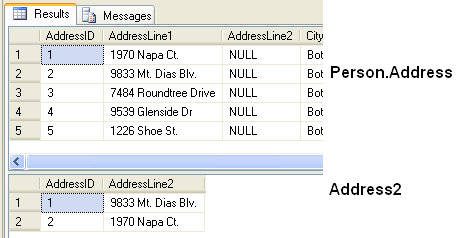
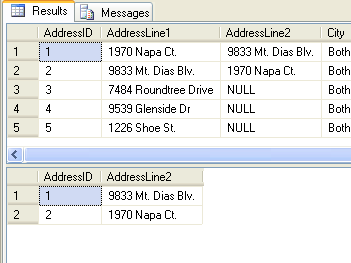
1st Table is Person.Address and 2nd table is Address2
Now I want to update data in column AddressLine2 in Person.Address by using data in Address2 with condition that AddressID is same and AddressLine2 in Person.Address is Null
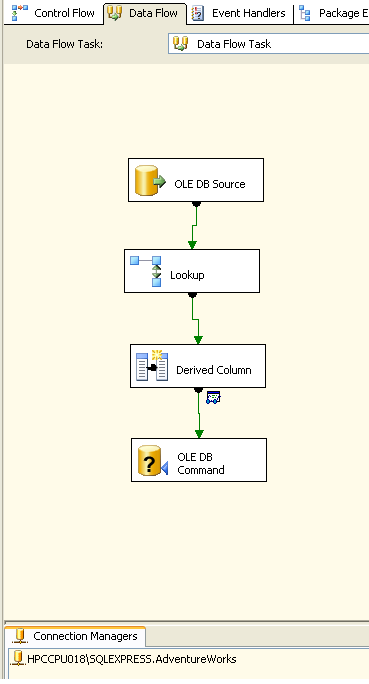
So 1st we create Data Flow Task in Control Flow tab

Create new Ole DB Connection in Connection manager, and add the flow that looks like below figures
In the OLE DB Source, add the table Person.Address
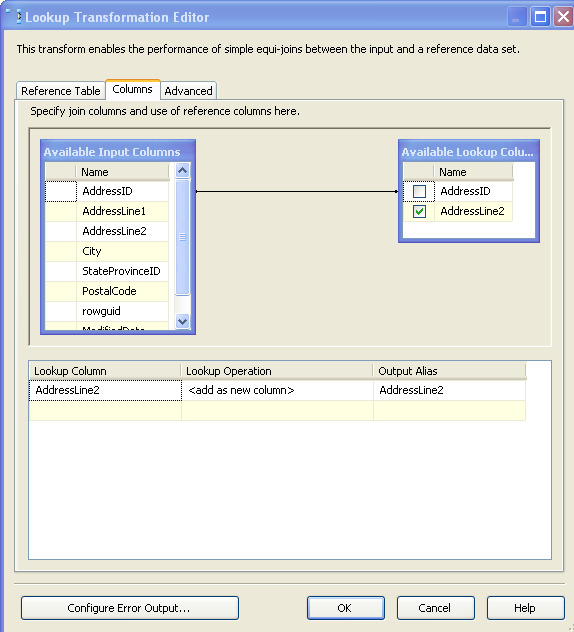
In the Lookup, Add table Address2. In the column tab at the lookup editor set like this:
So this Lookup transformation is actually add a new column from other table based on addressed.
The Derived Column transformation creates new column or replacing current column values by applying expressions to transformation input columns. An expression can contain any combination of variables, functions, operators, and columns from the transformation input. So from we need this to replace the new column (AddressLine2) from table Address2 into column AddressLine2 in table Person.Address
First we choose Replace ‘OLE DB Source.AddressLine2’ in Derived Column, then we add expression:
(ISNULL([OLE DB Source].AddressLine2) ? Lookup.AddressLine2 : [OLE DB Source].AddressLine2)
The OLE DB Command transformation runs an SQL statement for each row in a data flow. For example, you can run an SQL statement that inserts, updates, or deletes rows in a database table. So in this case, we need this transformation to update current data.
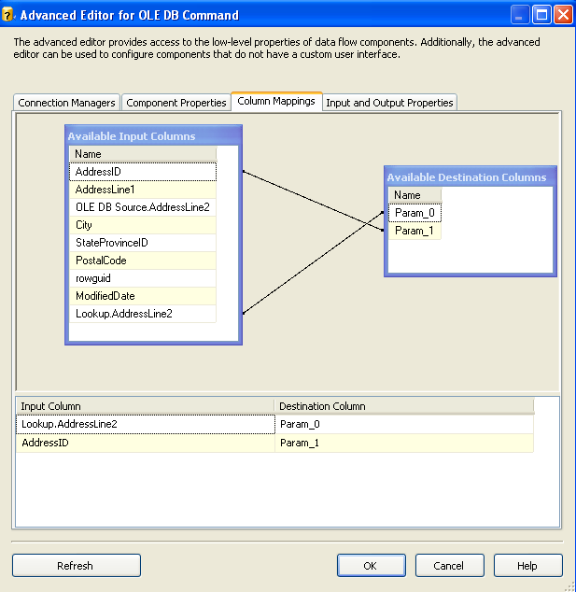
In Advanced Editor for Ole DB Command, in the component properties add SQL Command:
update Person.Address set AddressLine2 = ?
where AddressID = ?

Question mark indicate the parameter. Just remember the sequence of the parameter.
After we fill in the Sql Command, choose Column Mappings Tab and point the Available input columns to the Available Destination Columns based on the parameter that already created.
Then execute the package
Result:

Tuesday, August 31, 2010

Handling Slowly Changing Dimensions in SSIS

http://blogs.msdn.com/b/mattm/archive/2009/11/13/handling-slowly-changing-dimensions-in-ssis.aspx

I had a great time at PASS last week, and had a chance to talk to a lot of different SSIS users. One of the big topics seemed to be Slowly Changing Dimensions – I had a number of people ask for various improvements to the current Slowly Changing Dimension Transform in SSIS, and also ask for recommended alternatives in the meantime. I thought I’d summarize some of the more popular approaches I’ve seen, and see if anyone else has some alternatives.

Slowly Changing Dimension Wizard

You might have already tried the Slowly Changing Dimension Wizard that comes with SSIS 2005 and 2008 (and there are a number of good tutorials out there if you haven’t).
Outputs from the Slowly Changing Dimension Wizard
The SCD Wizard has a few things going for it - it’s quick and easy to implement, it handles most SCD scenarios out of the box, and its multi-component approach means you can customize it with the functionality you need.
It does have some pretty big limitations, however, which end up being a deal breaker for a lot of people.
A major inhibitor is the performance of the transform. It doesn’t perform that well for a couple of different reasons:
  1. The data lookups are not cached – each row results in a SQL Query
  2. OLE DB Command does row by row updates
  3. OLE DB Destination added by the wizard doesn’t use FastLoad by default (which can be easily changed in the OLE DB Destination editor UI)
Another downside to the transform is the “one way” nature of the wizard – running it again (to change columns, for example) means you’ll lose any customizations you might have made to the other transforms.
I recommend using the wizard for simple dimensions, where you’re not processing a lot of data. If performance is a concern, consider one of the following approaches.

Using MERGE

I came across this tip from the Kimball Group when I was putting together my Merge & CDC talk last year.
Using the SQL MERGE Statement for Slowly Changing Dimension Processing
In this approach, you write all of your incoming data to a staging table, and then use Execute SQL Tasks to run MERGE statements (you actually have to do two passes – one for Type 1 changes, and one for Type 2 – see the details in the tip above). I posted the sample packages and code I used in a previous blog post.
The performance in this approach is very good (although it moves the bulk of the work to the database machine, which might not be what you want). I recommend it if you don’t mind staging the data, writing custom SQL, or can’t use a 3rd party component in your environment.

Kimball Method SSIS Slowly Changing Dimension Component

I’ve heard great things about Todd McDermid’s custom SCD Transform. Instead of doing row by row lookups, this transform takes in the dimension as an input. This makes the comparison much faster than the stock SSIS version. It wraps up all of the functionality into a single transform, which is great if you’re following the Kimball methodology.

Table Difference Component

I had the chance to meet with the SQLBI.EU guys at PASS, and they mentioned their Table Difference component. I haven’t tried it out myself, but I remembered an email from one of the SQL Rangers (Binh Cao) that suggested this component for SCD processing. I’ve included his write-up here:
Table difference is an SSIS custom component designed to simplify the management of slowly changing dimensions and – in general – to check the differences between two tables or data flow with SSIS.
The component receives input from two sorted sources and generates different outputs for unchanged, new, deleted or updated rows.
clip_image001
  • Unchanged rows (are the data rows that are the same in both inputs)
  • Deleted rows (are the data rows that appear in old source but not in new source)
  • New rows (are the data rows that appear in new source but not in old source)
  • Updated rows (are the data rows that appear in both flows but something is changed)
The inputs MUST be sorted and have a collection of fields (keys) that let the component decide when two rows from the inputs represent the same row, but this is easily accomplished by SQL Server with a simple “order by” and a convenient index; moreover the SCD do normally maintain an index by the business key, so the sorting requirement is easily accomplished and do not represent a problem.
Clicking on TableDifference control gives the following window.
clip_image002
TableDifference analyzes all the columns in both inputs and compares their names. If the name of two columns and their corresponding types are identical, TableDifference adds them to the available columns to manage.
If the flows are sorted, their sort columns will be marked as key fields, using the same order in which they appear in the sort.
All other columns are assigned a standard Update ID of 10 and are managed as comparable columns.
Using the component editor, you need to provide the following information for the columns:
Check Option: you can choose the column type between:
  • Key field:  column will be used to detect when two rows from the inputs represent the same row. Beware that the inputs must be sorted by those columns
  • Compare:  column will be compared one by one to detect differences
  • Prefer NEW: columns will be copied from the NEW input directly into the output, no check
  • Prefer OLD: columns will be copied from the OLD input directly into the output, no check
KeyOrder: If a column is of type “Key Field” it is the order under which the field appear under the “order by” clause of your query. Beware that the component do not check for the correct sorting sequence, it is up to you to provide this information.
Update ID: Each different UpdateID creates a different output flow. If you need to detect when a change appears in some column you can use different update ID. Beware that the lowest update ID wins, i.e. if AccountNumber has update id of 10 and AddressLine1 has update id of 20, then Accountnumber will be checked first and if a change is detected, the row will go to update output 10, no matter if AddressLine has a difference.
clip_image003
Outputs Panel gives option to choose which output to enable as well as to name and describe the output.
clip_image004
Output Details allows selection of the columns for each output.  Here columns that are not needed for an output can be disabled.  The picture shows an example of the DELETED output which only have the Customer Key column in its output.  The less columns in the output, the better the performance of the component.
clip_image005
In the Misc Options tab, string comparisons definition can be defined:
  • The culture ID to use to perform the comparison. If not specified TableDifference will use the culture ID of the running task. The default is “empty”.
  • If you want it to ignore casing during string comparisons. The default is unchecked so TableDifference will perform comparison considering case.
In the Warnings panel, it will list any unused column from the input. As you might recall, if two columns are not identical regarding name and type, TableDifference will ignore them. This might be an error but the decision is up to you. By checking the warnings panel you can see if TableDifference is working with all the columns you need it to compare.